
How to restore Windows 10 style right-click menu in Windows 11
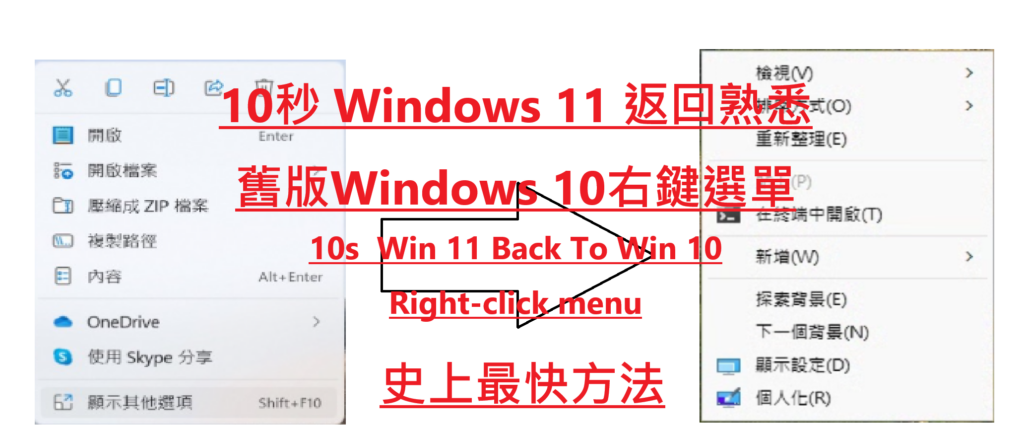
Windows 11 introduces a new simplified right-click menu design, but many users are still accustomed to the classic style of Windows 10, which provides more direct access to options (e.g., Compress, Share, etc. without additional clicks). Here's how to easily restore the old right-click menu.
Method 1: Use the registry file editor (recommended for users familiar with the operation)
Open the directory editor
- 按
Win + RInputregeditand press Enter. - Note: It is recommended to make a backup (File → Export) before modifying the registry file.
- 按
Navigation to Destination Ferry Terminal The path will unfold in sequence:
HKEY_CURRENT_USER\Software\Classes\CLSIDCreate new code
- 在
CLSIDRight-click → New → Code, name it:{86ca1aa0-34aa-4e8b-a509-50c905bae2a2}
- 在
Create Subcode
- Right-click on the code you just created → New → Code, name it
InprocServer32。
- Right-click on the code you just created → New → Code, name it
Modify the slave code value
- Selected
InprocServer32Double-click on the right side of the(preset)If you are not sure what you want to do, leave the data blank (just clear it) and press OK.
- Selected
Restarting the Explorer
- 按
Ctrl + Shift + EscOpen Job Manager. - Locate "Windows Explorer" and right click on it → Restart.
- 按
Method 2: Through the command prompt character (one-click operation)
Run CMD as a system administrator
- 按
Win + XSelect "Windows PowerShell (System Administrator)" or "Command Prompt (System Administrator)".
- 按
Input Command
Windows 10 Menureg add “HKCU\Software\Classes\CLSID\{86ca1aa0-34aa-4e8b-a509-50c905bae2a2}\InprocServer32” /f /ve taskkill /f / im explorer.exe & start explorer.exe
Lazybones Download
win10 right click menu | win11 right click menu |
Method 3: Use of third-party tools (for troublesome users)
Tool Recommendations:
- ExplorerPatcher(Full functionality with customizable workbars, right-click menus, etc.).
- Win11ClassicContextMenu(Lightweight, focused on right-click menus only).
Usage: Download the tool and follow the instructions to install it, check the "Use classic context menu" option.
Restore Windows 11 Default Menu
If you need to change back to the new style, simply delete the previously created registry code:
Run CMD as a system administrator
- 按
Win + XSelect "Windows PowerShell (System Administrator)" or "Command Prompt (System Administrator)".
- 按
Input Command
reg delete “HKCU\Software\Classes\CLSID\{86ca1aa0-34aa-4e8b-a509-50c905bae2a2}” /f taskkill /f /im explorer.exe & start explorer.exeor
- Open
regeditThe navigation to the..:HKEY_CURRENT_USER\Software\Classes\CLSID\{86ca1aa0-34aa-4e8b-a509-50c905bae2a2} - 在
{86ca1aa0-34aa-4e8b-a509-50c905bae2a2}Right-click on the code → Delete. - Restart the File Explorer.
Points of Attention
- System updates may reset settings: You may need to do this again after some Windows updates.
- consistency: Some newer applications, such as software with modernized right-click menus, will still display Windows 11.
- Backup Important Information: Although the operation is safe, there is still a risk of modifying the login file, so it is recommended to back it up in advance.
With the above methods, you can flexibly switch the right-click menu styles, balancing the efficiency and the beauty of the interface. If you encounter any problems, please feel free to ask! 🚀
 Chinese
  English